
Last month I said an MCP is a window. Claude reads what you point it at, and nothing else changes.
This month we open one. Start to finish, every screen. And it’s Google Drive.
I picked Drive for the boring reasons, which are the right ones. It’s free. You already have it. Nobody has to buy a seat. And the files you keep re-explaining to Claude are probably sitting in it right now, under names like FINAL_v3_use this one.
(Every Drive has that file. Be honest.)
Why the first one matters more than the rest
When you connect your first one, you learn how all the others work. Same kind of screen. Same permission step. Same moment where you ask a question and find out whether it actually looked.
So it’s worth doing slowly, once, with something you already understand. After that, every other window is the same ten minutes with a different logo on the button.
How to connect your first one
1. Make one folder worth opening
Do this before you touch a setting. It’s the step everyone skips, and it’s the one that decides whether any of this works.
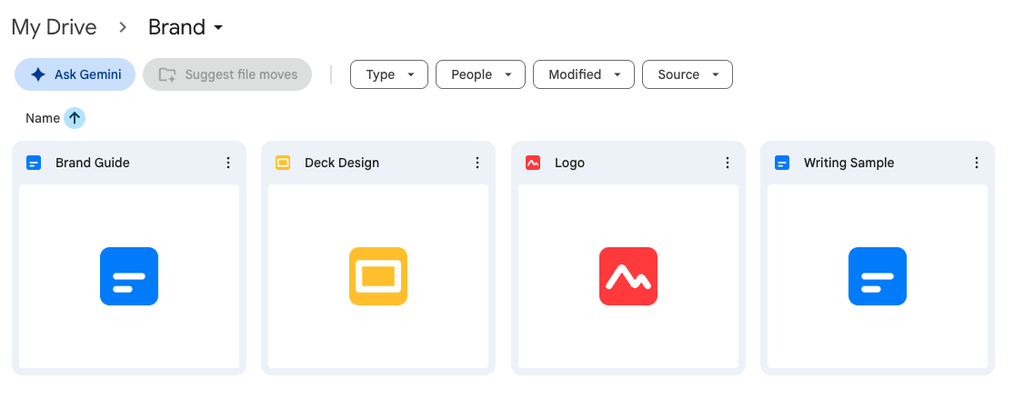
Make a folder called Brand. Put four things in it: your current logo files, your brand guide, the last deck you were actually proud of, and one piece of writing that sounds like you on a good day.
Then take the old versions out. Claude will read whatever is in there. If the 2024 deck is sitting next to the 2026 one, it has no way of knowing which one you meant.
2. Find Google Drive in Claude’s connectors
In Claude, open Settings and go to Customize. Google Drive is in the list. Click Connect.
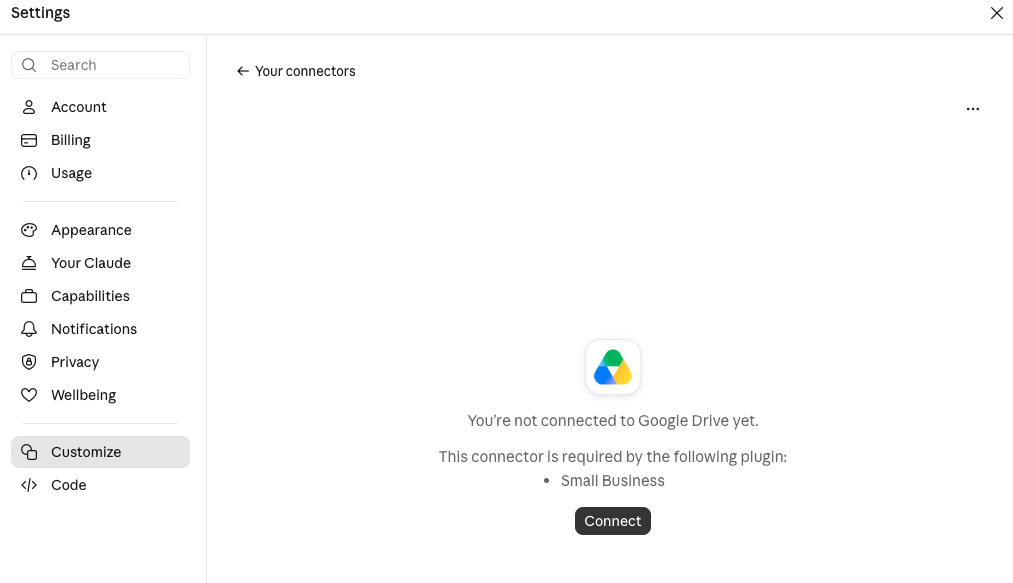
If you’re on a company plan and you can’t see it, an admin may need to switch it on first. Send that email first!
3. Sign in to Google, and read the permission screen
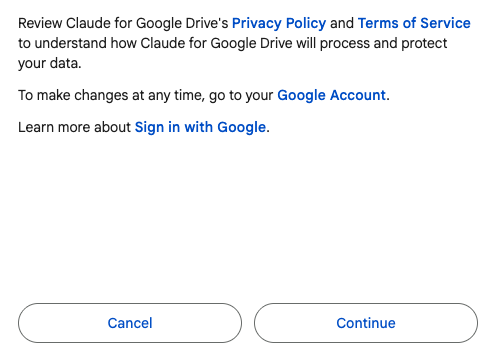
Use the Google account that owns the Brand folder. Google will show you a screen listing what Claude is asking to see.
Read it. It’s short. This is the moment “connected” turns into something specific, and it’s a little reassuring to see it written down.
4. Ask a question only the folder can answer
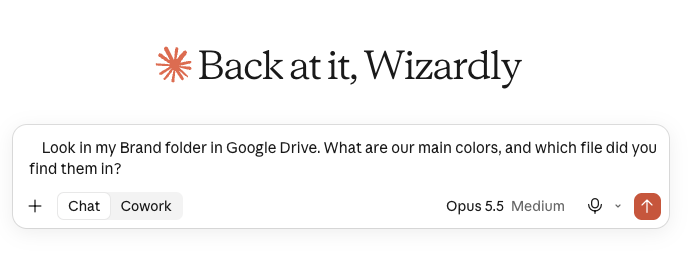
Start a new chat and ask something it can’t know any other way. This is the one I use:
Look in my Brand folder in Google Drive. What are our main colors, and which file did you find them in?
The second half of that question is the important half. If it names the file, it opened the folder. If it gives you a confident answer and no file, it was guessing.
5. Fix what it found
The first answer usually tells you something about the folder. It found the old guide. It found two logos and picked the wrong one. It quoted a color from a deck you abandoned in March.
That’s the useful part. Rename it, move it out, and ask again. Ten minutes of tidying here saves you correcting the same mistake for a year.
What it feels like when it works
It’s a little anticlimactic, honestly. You ask for a one-paragraph company description in your voice. It opens the deck and finds the boilerplate. Then it writes something that sounds like you wrote it on a Tuesday when things were going well.
No pasting. No re-explaining the blue. You’ll notice it every time you don’t have to do it.
Quick heads up
It reads what you point it at, and that’s all. If your brand guide is a PDF of pictures, it reads it more like a picture than a file. (That’s a later post, and a slightly opinionated one.)
It only knows what’s current if the folder does. The connection tidies nothing, so the mess stays yours. It just gets much harder to ignore.
And it forgets. Close the chat and the window closes with it. Next time it opens the folder again, which is exactly why the folder is worth keeping clean.
What’s next
Next up, the thing this folder makes possible: gathering everything you’ve made and looking at it all at once. Forty things side by side will tell you more about your brand than any list of rules.
👉 If you missed last month’s, the plain-language version of what an MCP is lives here.
Meg